
Directly contributing content#
You can also contribute to the source code directly in the Havnett Source repository on the internal NPI Gitlab instance, gitlab.npolar.no.
You will need to login using your NPI credentials (same username / password as on NPI computers).
You will need to be a member of the
NPIOceangroup.Ask Øyvind or Tore to add you if you are not already a member.
Attention
We currently have no policy on controlling contributions directly to the source code - any member of the internal NPIOcean Gitlab group can freely make changes that will change teh content of havnett.org. Eventually, we may want to have a clearer policy where contributors make merge requests that are reviewed by others before changes go through.
For now, the team of contributors is so small that we haven’t implemented any real control. This means that you should be mindful of making changes that could break or destroy something (although with git, nothing is lost - we can always revert changes and roll back to previous versions).
Making edits directly in the browser#
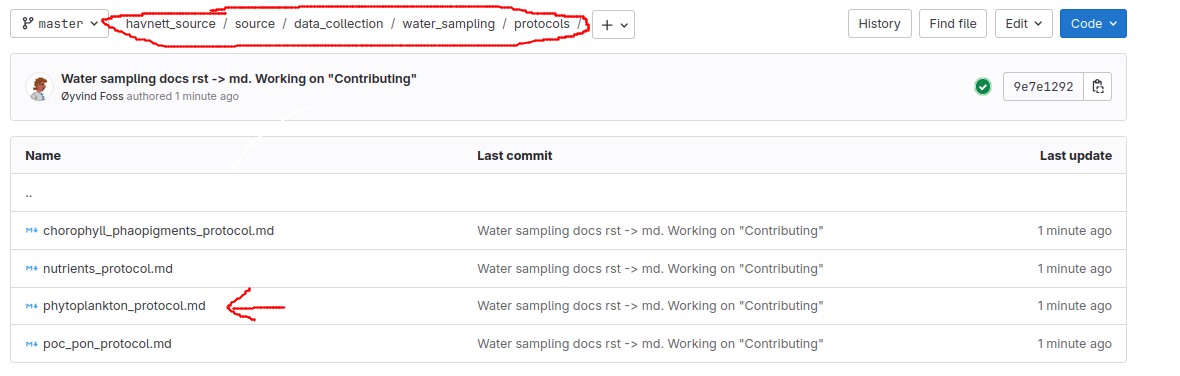
Navigate to the
Havnett Sourcerepository.Navigate to the
sourcefolder.This is where all the source documents live.
The folder structure mirrors the website structure, e.g. the source document for:
https://havnett.org/data_collection/water_sampling/protocols/phytoplankton_protocol.htmlis located at
source/data_collection/water_sampling/protocols/phytoplankton_protocol.md
Navigate to the folder containing the file you want to edit (let’s take
phytoplankton_protocol.mdas an example), and click on the file: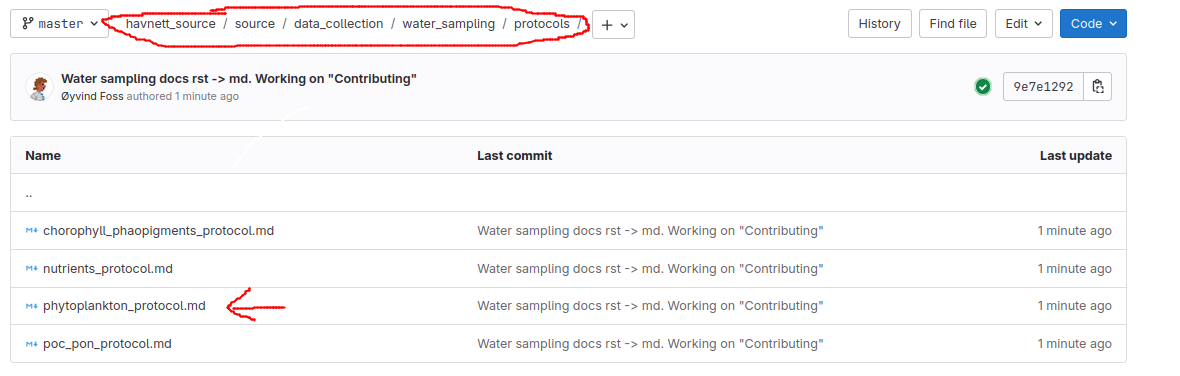
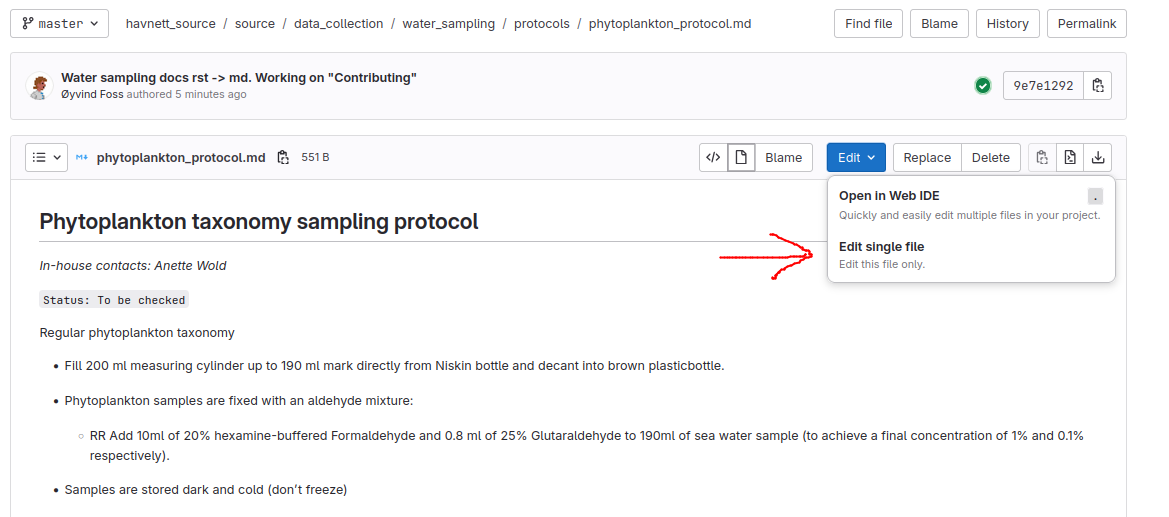
This opens the file, displaying the contents in markdown.
Note that markdown rendering in Gitlab can differ a little from rendering in Sphinx (which is what builds
HavNett). So, in some instances things may look strange here but render fine on havnett.org (especially for more advanced formatting - basic markdown syntax should look similar everywhere).
Click
Edit->Edit single file: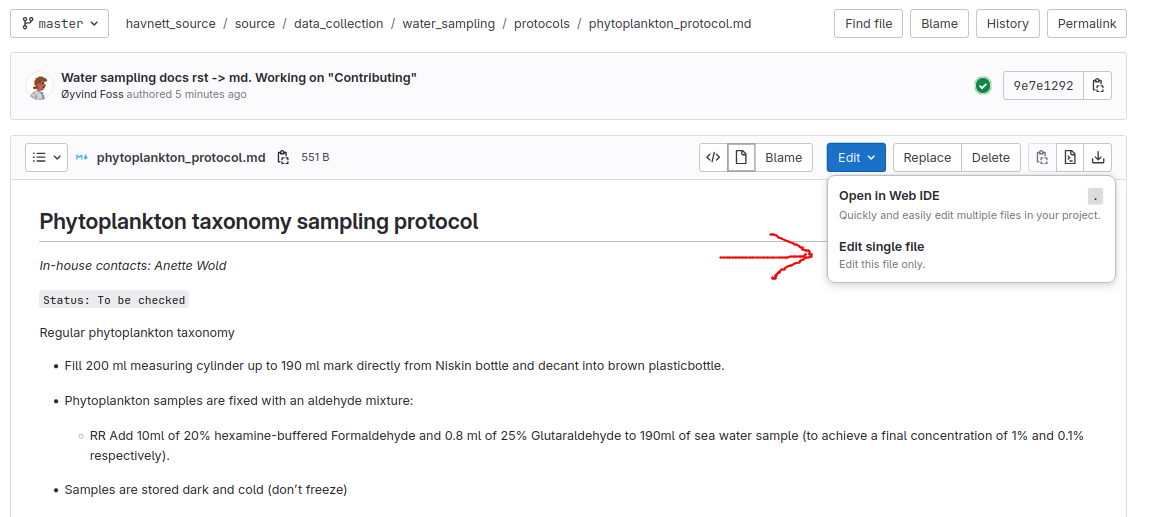
You can also choose
Open in Web IDE; this will open VSCode in the browser and allow you to do more advanced things, edit multiple files etc. For now, let’s stick with the simpler option,Edit single file:
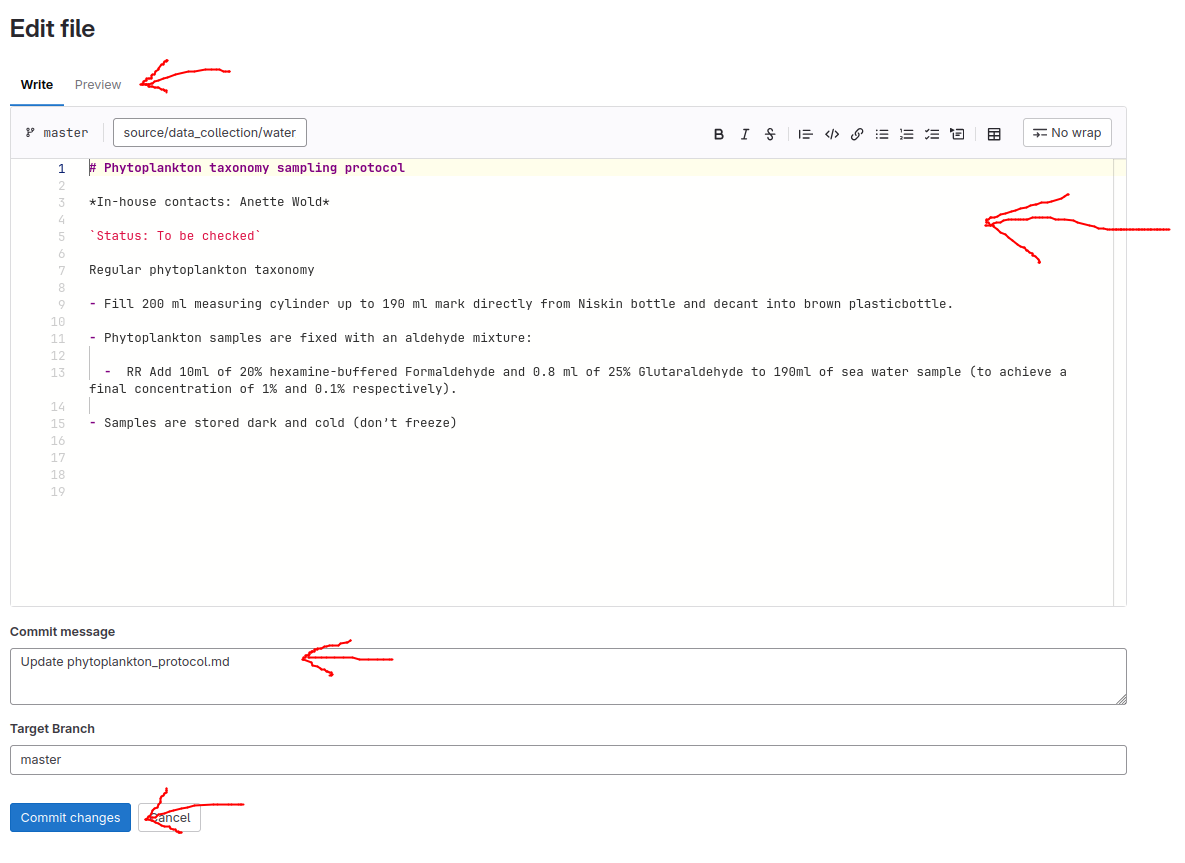
You can now directly edit the file contents in the text window. If you click
Preview, it will show you the rendered markdown as you type.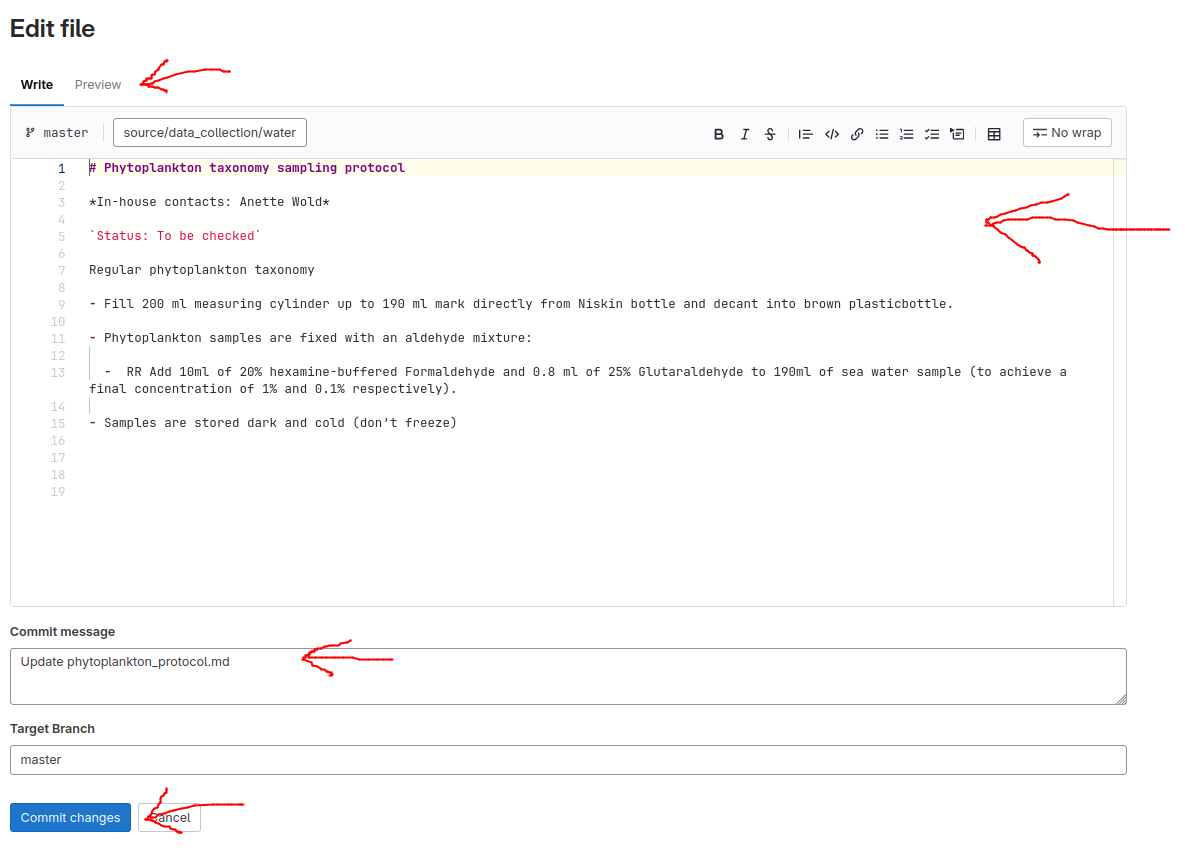
When you are happy with your changes, you can commit them to the repository:
Briefly describe the changes you have made in the
Commit messagefield (e.g. “Added instructions about sample storage”`)Click
Commit changesto commit.
When you commit, your changes get implemented. This will trigger the automatic process for compiling and publishing to havnett.org ( you should see your changes appear there after a few minutes).
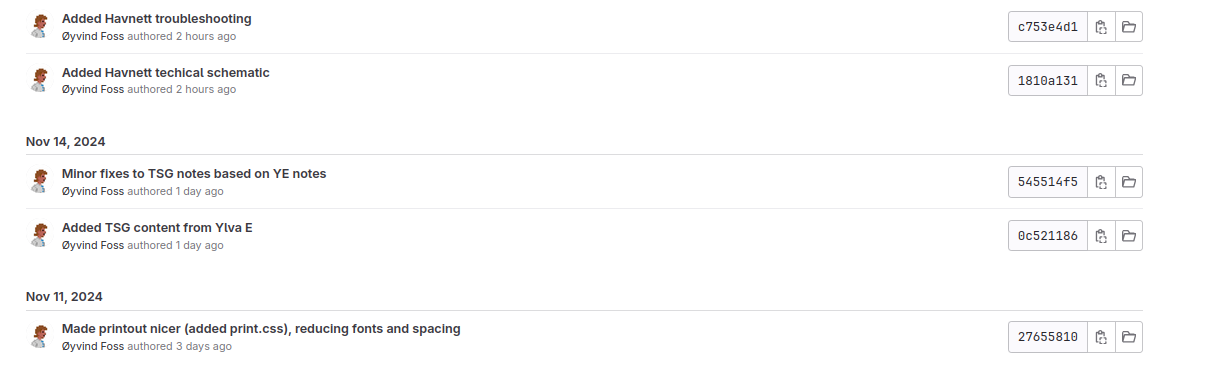
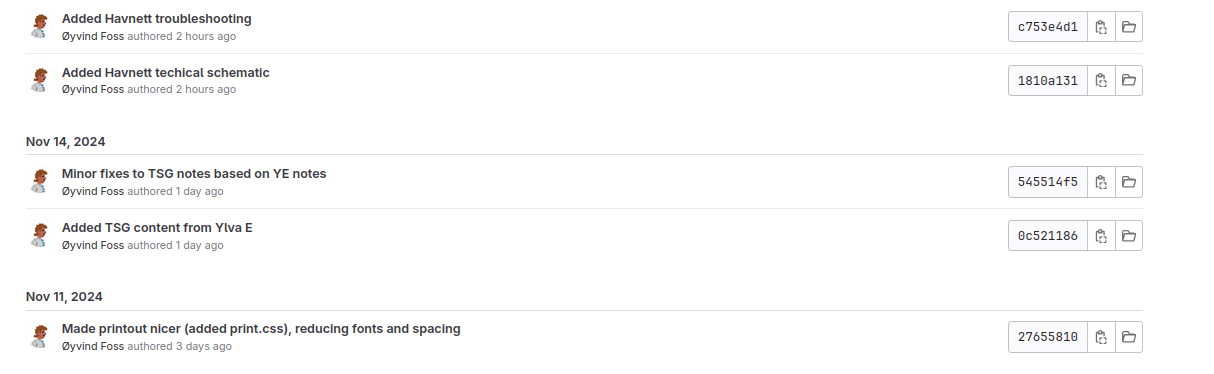
Your commit becomes part of the repository and can be viewed in the commit history of the repository:
More advanced use#
(TBW)
We should detail non-browser approach here eventually:
clone the repo
pull the repo
add, commit and push
Should look into what the Windows options are first (both command line and perhaps also a nice GUI if we can find one).