
Python setup with Miniforge/Mamba (Windows)#
It can be clunky to manage packages and libraries in python - luckily, there are neat tools that make it a lot easier than it used to be.
Here, we will use conda/mamba to make sure that we are all working with a more or less identical python setup in order to avoid issues with missing packages, different versions, etc..
What are conda and mamba?
conda and mamba are command line tools used to manage installation of python packages and virtual environments; mamba is a faster implementation of the package manager conda. The two should be otherwise identical, and you can replace commands beginning with conda with identical commands using mamba, but generally expect the latter to be faster. Use whatever you want, we will write the commands out with mamba.
What is Miniforge?
Miniforge is a tool for easily getting going with installing and using mamba/conda. After installation, you can open Miniforge from your Windows start menu - that will open a terminal window where you have access to conda/mamba.
Below is a recipe that should get you going on a Windows system.
Installing Miniforge#
Start by downloading and running the miniforge installer found here:
There is a windows installer here. Download and install the windows version:
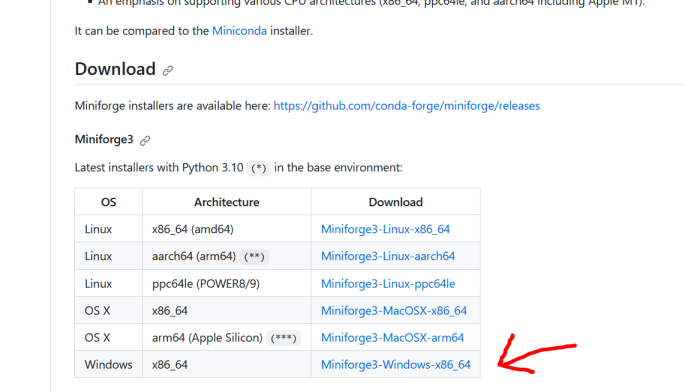
Download the installer file (
Miniforge3-Windows-x86_64.exe*).Run the installer file.
You may encounter a message saying Windows protected your PC... Click More info and then Run anyway:
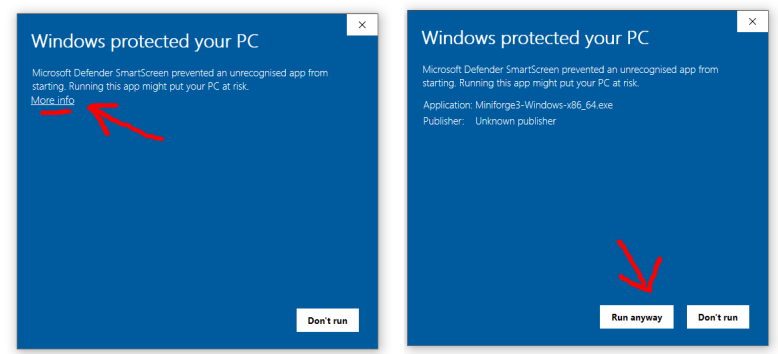
- The installer should start. Click through the installer dialog prompts until the installation is finished.
Under Select Installation Type, select “Just me” unless you have admin privileges and want to install for all users.
Running Miniforge#
Open the Minforge Prompt: Should be installed on your system and available from e.g. the Start menu.
This opens a terminal running a conda environment:
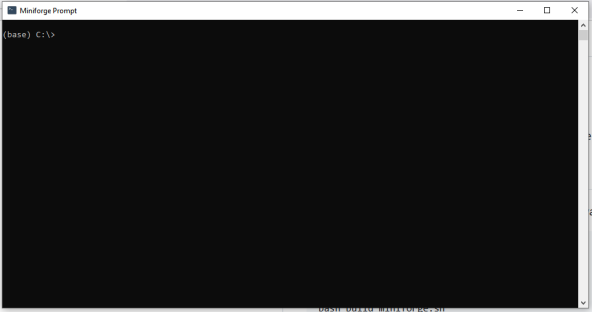
(We will not spend much time in this terminal! We just use it to start sessions in something more user friendly.)
To the left, in parentheses, is your current conda evironment. You can see that you are in the
baseenvironment.From here, you can open python, install python packages, and create new conda environments containing other packages.
Note:
You should not install anything into the base environment - the recommended way of working is to create new environments for new projects and do the actual work in these.
Note:
Miniforge is set up to look for mamba packages in one place: the conda-forge repository, which contains most standard python packages and a lot more.