
Markdown for HavNett#
Markdown cheat sheet and tips tailored for producing content for HavNett.
General introduction to Markdown#
Some useful places to start:
This online tutorial is a great way to learn the markdown ropes within a few minutes.
Headings#
Headings are created with # symbols. More # means a smaller heading:
# Heading level 1
## Heading level 2
### Heading level 3
#### Heading level 4
Text styling#
Text can be styled inline:
**bold text**
*italic text*
`inline code`
~~strikethrough~~
bold text
italic text
inline code
strikethrough:::
Lists#
Markdown supports bullet lists..
- Item
- Item
  - Indented item
- Item
Item
Item
indented item
Item
.. and numbered lists.
1. Item
    - Indented item
2. Item
3. Item
Item
Indented item
Item
Item
Blockquotes#
Blockquotes are indented colored boxes that can be useful for emphasis:
This is normal text.
> This is a
> blockquote.
This is normal text.
This is a blockquote.
Blockquotes can be nested:
> This is a blockquote.
>> This is a nested blockquote.
This is a blockquote.
This is a nested blockquote.
Horizontal rules#
Horizontal rules (faint lines) can be useful for separating pieces of text.
*Text above rule*

---

*Text below rule*
Text above rule
Text below rule
Make sure to separate text and --- with an empty line!
Unicode symbols#
Markdown supports Unicode symbols, so you can include special characters, emojis, or mathematical symbols (α, β, ±, ×, €, →, ©, ✓) directly in your text.
If you want, you can also include emojis - these can actually be quite useful in documentation!
🚢 ❄️ 🧭 🌏
For more symbols, you can browse Unicode Table — a handy reference where you can search for and copy symbols for your text.
HavNett Markdown#
Markdown provides a simple, lightweight syntax for formatting text. However, different platforms (such as Sphinx, GitHub, etc.) use slightly different “flavors,” which may vary in syntax and in the availability of more complicated features.
The “HavNett style” builds on MyST-Parser and Sphinx with a bunch of extensions. You can find some tips below. In addition, the MyST-Parser syntax documentation is quite good!
Note that the syntax in most cases allows for use of either ``` or ::: fences for code blocks. You can usually exchange one for the other, and there is no consistent use of one or another across HavNett.
HavNett file structure#
Source code files and directory structure#
The source code for HavNett are a bunch of Markdown filed (.md). The files reside in the source/ directory. Here, you will find a folder structure (cruise_field/ ship_ctd/ useful_stuff/ …) mirroring the HavNett page structure.
For example, the source code for this page:
https://havnett.org/useful_stuff/technical/writing_markdown
Is found at:
source/useful_stuff/techical/writing_markdown.md.
In addition, static content like images and pdfs are found in source/_static/.
Content trees (internal structure)#
The page hierarchy and navigation menus in HavNett are built using toctrees (table-of-contents trees). Each page can include a toctree directive to specify its child pages, which defines the navigation order and internal linking.
Example of a simple toctree in a page:
:::{toctree}
:maxdepth: 2
:caption: Useful Stuff

technical/writing_markdown
technical/other_page
:::
Key points:
:maxdepth:controls how many heading levels are shown in the navigation.:caption:adds a title above the links in the sidebar.The paths are relative to the directory of the
.mdfile.
Using this system, HavNett automatically builds the sidebar, breadcrumbs, and navigation links for all pages.
Links#
The general syntax for links is:
[Text to be displayed](Thing that the link points to)
External pages#
To link to an external webpage:
[Link to the *NPI* webpage](https://www.npolar.no)
Note that Markdown expects a full URL with a scheme (http:// or https://). Without it, it treats it as a relative link to a local file - i.e. [Link to the *NPI* webpage](www.npolar.no) is not going to work.
Other HavNett pages#
To link to another HavNett page, you can use either a relative path from the directory of the source file (in this case source/useful_stuff/techical/writing_markdown.md), e.g.:
[Link to the *Numerical Modeling* page](../../modelling/numerical_modeling)
Alternatively, paths can be specified from the source/ directory by starting with /, e.g.:
[Link to the *Numerical Modeling* page](/modelling/numerical_modeling)
Download links to static files#
The same syntax also work for creating download links to static files located in source/_static/:
[Example PDF](/_static/docs/logsheets/logsheet_salinometer.pdf)
Cross-references#
You can link to a specific section within a page. For example, linking to the Unicode symbols section within this page:
["Unicode symbols" section](unicode-symbols)
Images#
Location of source files#
Image files can be placed anywhere - e.g., you can put your image.jpg in the same directory as your .md file. However, in order to reduce clutter, it is preferable to put image files in the _static/ directory - you can still link to them from your page elsewhere in the directory structure.
Simple syntax#
The simplest syntax will simply display the image in its original size:
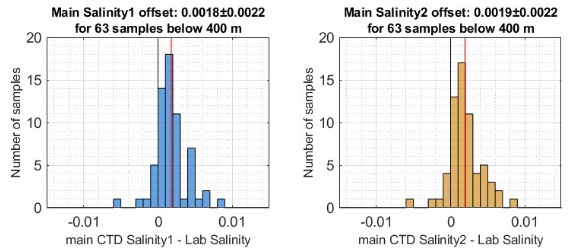
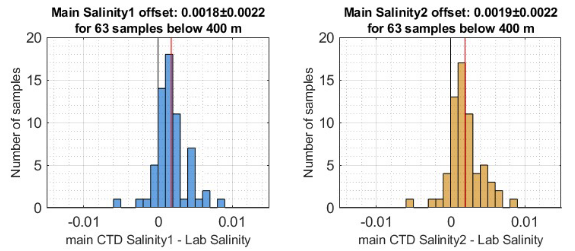
Alt textis displayed if the image cannot load, and helps with accessibility. In this case, you could replaceAlt textwith , e.g.Example histogram.Supported formats: PNG, JPG, SVG, GIF, etc.
Syntax for clickable/scalable images#
Sometimes it’s useful to scale an image so it doesn’t appear full-size if it’s very large. It can also be convenient to make the image clickable, so that clicking it opens the full-size version.
The following approach uses a small HTML snippet inside Markdown to display an image at 50% of the container width. Clicking the image opens the full image or downloads it, depending on browser settings:
[<img src="../../_static/figures/sal_qc/sal_qc_hists_example.png" width="50%"/>](../../_static/figures/sal_qc/sal_qc_hists_example.png)
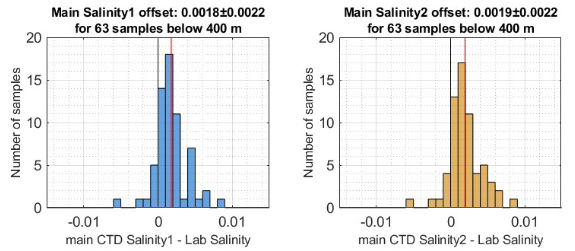
Note that this only works for relative paths from the markdown file directory, so ../../_static/ (or similar depending on where your .md file is located) must be used instead of /_static/.
Admonitions (“boxes” with warnings/tips/info etc)#
Admonitions are special boxes that can highlight warnings, tips, notes, or important information. HavNett/MyST uses the standard MyST directives for this.
Predefined admonition types include:
🔵
note,important🟢
hint,seealso,tip🟠
attention,caution,warning🔴
error,danger
:::{tip}
This is a `tip` admonition. You can include any Markdown content here.
:::
Tip
This is a tip admonition. You can include any Markdown content here.
:::{warning}
This is a `warning` admonition. You can include any Markdown content here.
:::
Warning
This is a warning admonition. You can include any Markdown content here.
You can also define your own admontition headings. Use the class argument to choose color etc
:::{admonition} This is my own heading
:class: danger
This is a custom admonition using the `danger` class to get red color.
:::
This is my own heading
This is a custom admonition using the danger class to get red color.
Code blocks#
Code blocks allow you to display formatted code in your documentation. You can specify the programming language for syntax highlighting, or leave it generic for plain code.
Note that you have to use ``` ; ::: will not work.
Generic code block#
```
This is a generic code block.
It can contain any text or code.
```
This is a generic code block.
It can contain any text or code.
Python code block#
```python
# This is python code
import matplotlib.pyplot as plt

plt.plot([1, 2, 3], [1, 2, 3], 'go-', )
```
# This is python code
import matplotlib.pyplot as plt

plt.plot([1, 2, 3], [1, 2, 3], 'go-', )
Matlab code block#
```matlab
% This is MATLAB code
x = 0:0.1:10;
y = sin(x);
plot(x, y)
```
% This is MATLAB code
x = 0:0.1:10;
y = sin(x);
plot(x, y)
Math / equations#
HavNett supports LaTeX-style math using MyST/MathJax.
Inline math#
For inline equations, use either single $:
Euler's formula: $e^{i\pi} + 1 = 0$
Euler’s formula: \(e^{i\pi} + 1 = 0\)
or {math}:
Euler's formula: {math}`e^{i\pi} + 1 = 0`
Euler’s formula: \(e^{i\pi} + 1 = 0\)
Equations#
For equations, use either $$:
$$
\theta =\int_a^4 x^2 dx
$$
$$ \theta =\int_a^4 x^2 \ dx $$
or :::{math} / ```{math}:
```{math}
\theta =\int_a^4 x^2 dx
```
Collapsible sections#
Collapsible sections let you hide content until the reader chooses to expand it. HavNett/MyST supports this using {dropdown} directives:
:::{dropdown} Click to expand
Here is some hidden content.
You can include **lists, images, code, or text** inside the dropdown.
:::
Click to expand
Here is some hidden content. You can include lists, images, code, or text inside the dropdown.
Footnotes#
Footnotes allow you to add extra information without cluttering the main text. MyST Markdown supports standard footnote syntax:
This is an example sentence with a footnote.[^1]

[^1]: This is the footnote text.
This is an example sentence with a footnote.[1]