Go-Pro camera#
Widely used in the field for time laps imagery, underwater photos, etc.
Caution
Instructions here for the GoPro Session 4, a rather old model at this point. Your mileage may vary for other models!
Camera info#
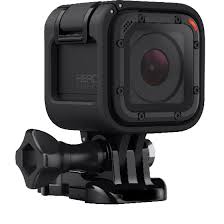
Waterproof down to 10 m.
MicroSD card.
Two buttons:
A red circle on top of the camera (R).
A small rectangular buttom on the backside of the camera (c).
Operation#
Recording a video
Make sure the settings are the way you want them.
Press R once - the camera will start recording (the display shows ticking down of the video, and the red light blinks slowly).
Press R again to stop.
Recording a time lapse
Make sure the time lapse settings are the way you want them.
Hold R for three seconds. The camera display shows the time lapse icon and shows a countdown to each new photo. The red light also blinks every time a photo is taken.
Press R to stop. The display will show the numer of images taken.

GoPro timelapse icon.
Transferring files#
The easiest way to do this at this point is to just read the data off an SD card inserted into a computer.
GoPro Quik software can help - this is an easy way to import and manage files from the GoPro. Quik can be set to automatically import images and delete them off the SD card.